The post Unable to establish a PHP session – PHPMyAdmin error first appeared on Web Hosting Stuff.
]]>
PHPMyAdmin error :
Do you ever come across the following error when you access PHPMyAdmin from cPanel.
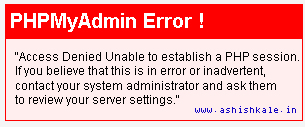
“Access Denied Unable to establish a PHP session. If you believe that this is in error or inadvertent, contact your system administrator and ask them to review your server settings.”
Normally, you will get this error when the permission or ownership of the tmp folder for this user is wrong. That is, make sure the ownership of /home/$username/tmp folder has ownership set to $user and permission as 755. If it is not, you will face the same problem.
Solution :
Step 1 : Login to the server via SSH as root.
Step 2 : Check the permission and ownership of /home/$user/tmp folder.
Step 3 : Set ownership as $user by using following command
# chown $user. /home/$user/tmp
Step 4 : Set permission of the tmp folder to 755 by using following command
#chmod 755 /home/$user/tmp
.
.
.
.
.
.
.
.
That’s it!!!
$user can be replaced with your respective username.
The post Unable to establish a PHP session – PHPMyAdmin error first appeared on Web Hosting Stuff.
]]>The post How to Install phpmyadmin on centOs 7 first appeared on Web Hosting Stuff.
]]>phpMyAdmin is an open source tool used for the administration of MySQL. phpMyAdmin depends on the LAMP stack. It requires Apache2 or any compatible web servers, MySQL and PHP. This post will show you how to install phpmyadmin on centos 7.

Installation :
Step 1 :
Download epel-release-7-x.noarch.rpm
Step 2 :
Install epel-release-7-x.noarch.rpm file
Step 3 :
Copying the rpm link by using follownig command
[root@hostripples ~]# rpm -ivh http://epel.mirror.net.in/epel/7/x86_64/e/epel-release-7-1.noarch.rpm
Step 4 :
Now, update repositories by issuing follownig command
[root@hostripples ~]# yum check-update
Step 5 :
Install phpmyadmin package along with dependencies
[root@hostripples ~]# yum -y install phpmyadmin
When you are finished
Step 6 :
Open /etc/httpd/conf.d/phpMyAdmin.conf file and edit as follows and Find follownig lines.
Note : ( you are found these line 2 times )
# Apache 2.4
<RequireAny>
Require ip 127.0.0.1
Require ip ::1
</RequireAny>
Replace with
# Apache 2.4
<RequireAny>
# Require ip 127.0.0.1
# Require ip ::1
Require all granted
</RequireAny>
Step 7 :
Then, Restart Apache service by using following commands
[root@hostripples ~]# systemctl restart httpd.service
Step 8 :
Now open http://serverIP/phpmyadmin in your browser.
.
.
.
.
.
Congratulations! You have just installed phpMyAdmin on your CentOS 7
You can login using root as username and mysql root password.
The post How to Install phpmyadmin on centOs 7 first appeared on Web Hosting Stuff.
]]>The post How to Export Database using PHPMyAdmin first appeared on Web Hosting Stuff.
]]>
phpMyAdmin makes the task of managing your MySQL databases easier and more efficient, and it allows you to manage those available databases from anywhere. With phpMyAdmin, you can create, edit, back up, Import, export, and delete databases, as well as manage database tables. When you export a database, you are creating a backup file of the database. This backup file is usually a .sql file (a text file), and can be used to copy and import the database onto another server.
Export Database using PHPMyAdmin
1) Log into phpMyAdmin
2) Click the database you are working with.
3) Click Export Button
4) Under the Export heading, Selected SQL option
5) Under the Options heading, ensure that you have selected, Add DROP TABLE / VIEW / PROCEDURE / FUNCTION
6) Ensure the Save as file option is checked.
7) Click Go Button
8) You will be prompted to either open or save the file. Select the option to save the file and then save the somewhere you’ll remember.
.
.
.
Congratulations, you have just exported a copy of your database!
The post How to Export Database using PHPMyAdmin first appeared on Web Hosting Stuff.
]]>The post How to Import Database using PHPMyAdmin first appeared on Web Hosting Stuff.
]]>
phpMyAdmin makes the task of managing your MySQL databases easier and more efficient, and it allows you to manage those available databases from anywhere. With phpMyAdmin, you can create, edit, back up, import, export, and delete databases, as well as manage database tables.
Import Database using PHPMyAdmin
1) Login to cPanel
2) Open phpMyAdmin and click the phpMyAdmin icon
3) Select the database that you need to Import
4) Click Import Button
5) Under File to Import, click Browse Button
6) Select the backup file you previously created (it will be either a .sql .zip or .tar.gz file).
7) Click Go Button
8) When the database has been imported successfully, you will see the message to: Import has been successfully finished, ## queries executed.
.
.
.
Congratulations, you have just imported a database!
The post How to Import Database using PHPMyAdmin first appeared on Web Hosting Stuff.
]]>