Deprecated: Optional parameter $shortcode declared before required parameter $args is implicitly treated as a required parameter in /home/ashishka/public_html/wp-content/plugins/wp-cirrus/wp-cirrus.php on line 331

Warning: Cannot modify header information - headers already sent by (output started at /home/ashishka/public_html/wp-content/plugins/wp-cirrus/wp-cirrus.php:331) in /home/ashishka/public_html/wp-content/plugins/all-in-one-seo-pack/app/Common/Meta/Robots.php on line 89

Warning: Cannot modify header information - headers already sent by (output started at /home/ashishka/public_html/wp-content/plugins/wp-cirrus/wp-cirrus.php:331) in /home/ashishka/public_html/wp-includes/feed-rss2.php on line 8
Install phpBB | Web Hosting Stuff https://www.ashishkale.in Get solutions under one roof Fri, 11 Sep 2015 07:31:15 +0000 en-US hourly 1 How to Install phpBB from Softaculous https://www.ashishkale.in/how-to-install-phpbb-from-softaculous/ https://www.ashishkale.in/how-to-install-phpbb-from-softaculous/#respond Fri, 11 Sep 2015 07:30:39 +0000 http://www.ashishkale.in/?p=750 Install phpBB from Softaculous PhpBB is a free flat-forum bulletin board software solution that can be used to stay in touch with a group of people or can power your entire website. To install phpBB using Softaculous, follow these steps: Step 1. Log into your cPanel account. Step 2. In the Software and Services section, Click on Softaculous icon. Step 3. cPanel will redirect [...]

The post How to Install phpBB from Softaculous first appeared on Web Hosting Stuff.

]]>
Install phpBB from Softaculous

PHPBB copy

PhpBB is a free flat-forum bulletin board software solution that can be used to stay in touch with a group of people or can power your entire website.

To install phpBB using Softaculous, follow these steps:

Step 1. Log into your cPanel account.

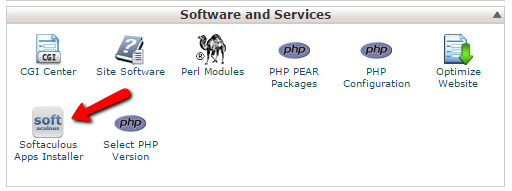
Step 2. In the Software and Services section, Click on Softaculous icon.
Softaculous

Step 3. cPanel will redirect you to the Softaculous Panel.

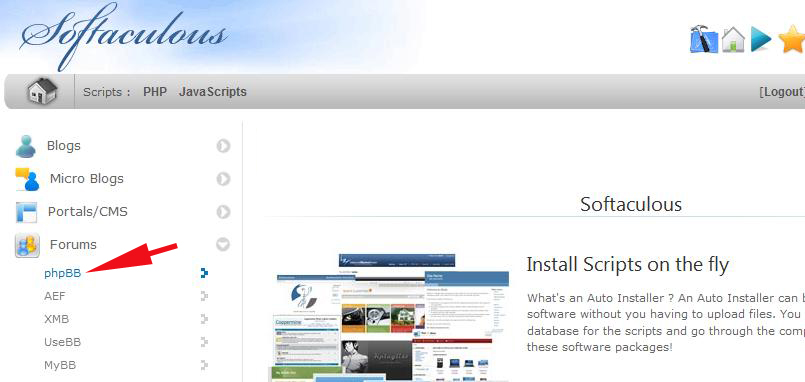
Step 4. On the left side of your screen you should locate the Forums category.

Step 5. Click on Forums.

Step 6. Then click on the phpBB link.
Install-phpBB3_Forums_PHPBB

Step 7. Click on the Install button.

phpbb Install

Step 8. Fill the necessary field under the Software Setup field.

1) Choose Domain
2) In Directory
3) Database Name

Step 9. Enter the following details under the Board Settings field.

1) Board Name
2) Site Description
3) Board E-mail

Step 10. Under the Admin Account field enter the following information

1) Admin Username
2) Admin Password
3) Admin Email

Step 11. Enter the following details under the Choose Language field

Select Language 

Step 12. Scroll down to the end of page.

Step 13. Click on the Install Button.


.
.
.
.
.
.

Your Software has been Installed Correctly.
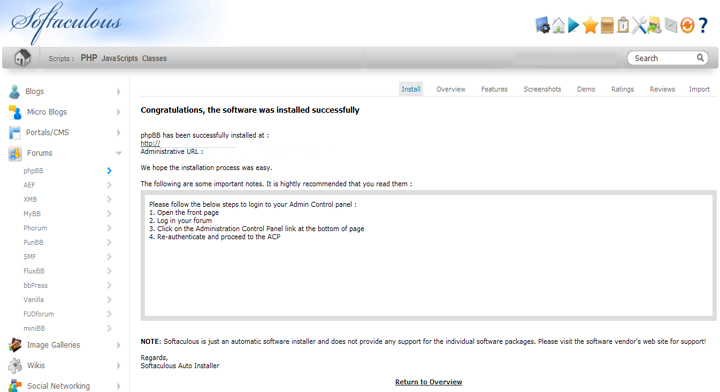
install-phpbb

The post How to Install phpBB from Softaculous first appeared on Web Hosting Stuff.

]]>
https://www.ashishkale.in/how-to-install-phpbb-from-softaculous/feed/ 0