Deprecated: Optional parameter $shortcode declared before required parameter $args is implicitly treated as a required parameter in /home/ashishka/public_html/wp-content/plugins/wp-cirrus/wp-cirrus.php on line 331

Warning: Cannot modify header information - headers already sent by (output started at /home/ashishka/public_html/wp-content/plugins/wp-cirrus/wp-cirrus.php:331) in /home/ashishka/public_html/wp-content/plugins/all-in-one-seo-pack/app/Common/Meta/Robots.php on line 89

Warning: Cannot modify header information - headers already sent by (output started at /home/ashishka/public_html/wp-content/plugins/wp-cirrus/wp-cirrus.php:331) in /home/ashishka/public_html/wp-includes/feed-rss2.php on line 8
Install Drupal | Web Hosting Stuff https://www.ashishkale.in Get solutions under one roof Fri, 11 Sep 2015 06:07:16 +0000 en-US hourly 1 How to Install Drupal Using Softaculous https://www.ashishkale.in/how-to-install-drupal-using-softaculous/ https://www.ashishkale.in/how-to-install-drupal-using-softaculous/#respond Fri, 11 Sep 2015 06:07:16 +0000 http://www.ashishkale.in/?p=741 Install Drupal Using Softaculous Hostripples offer super-easy Drupal installation using programs is called Softaculous. Softaculous is ideal for Web Hosting companies. It is used by diverse organizations, from local businesses to global corporations. In this artical we will show you how to install Drupal with Softaculous. Please, follow these steps: 1) Log into your Cpanel. 2) You will see a page [...]

The post How to Install Drupal Using Softaculous first appeared on Web Hosting Stuff.

]]>
Install Drupal Using Softaculous

Hostripples offer super-easy Drupal installation using programs is called Softaculous. Softaculous is ideal for Web Hosting companies. It is used by diverse organizations, from local businesses to global corporations.

In this artical we will show you how to install Drupal with Softaculous. Please, follow these steps:

1) Log into your Cpanel.

2) You will see a page of options for your new site.

3) Click the Softaculous icon. 

See Following Screenshot : 
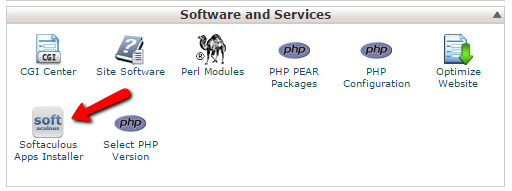
Softaculous

4) On the left hand side, you will see a list of all the programs that Softaculous has the ability to manage.

5) Scroll down the list until, you find the name Drupal in the Portals/CMS section of the menu.

6) Click the Drupal link.

See Following Screenshot : 
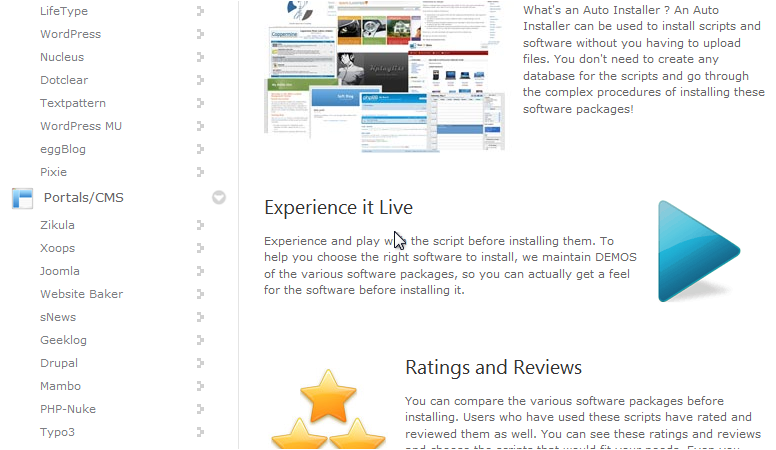
Drupal link-Portals-CMS

7) Click the Install tab near the top of the page.

See Following Screenshot : 
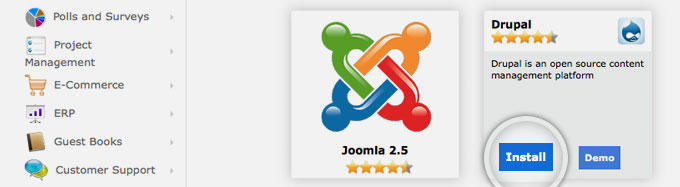
Install Drupal

8) Enter a directory where you want Drupal to appear on your website in the In Directory text box.

9) Enter a Username and Password.

Note : The username and password allow you to administer and customize your site. Choose a strong password; otherwise, you risk someone hacking your site.

10) Enter your e-mail address

11) Click the Install Drupal button.

12) Click the Finish Installation button.

You will see a confirmation screen when the installation finishes, and you will be e-mailed a confirmation that your site has been installed.

See Following Screenshot : 
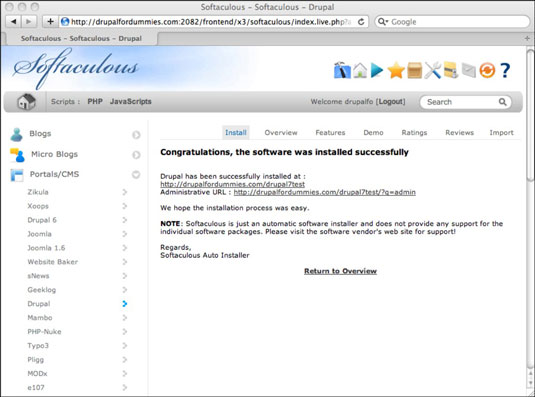
Drupal-Finish Installation

13) Click the link to your site.

.
.
.
.

“Drupal has been successfully installed”

See Following Screenshot : 
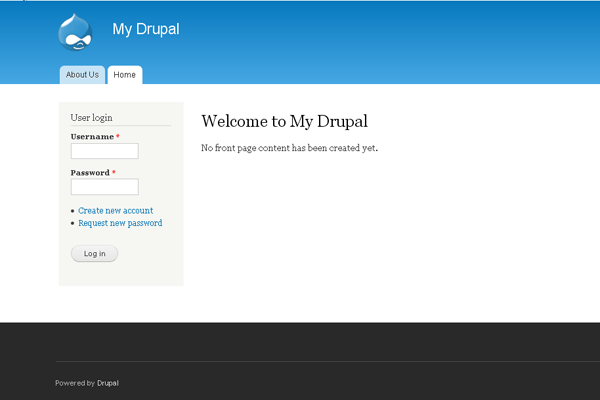
my Drupalscreenshot1


The post How to Install Drupal Using Softaculous first appeared on Web Hosting Stuff.

]]>
https://www.ashishkale.in/how-to-install-drupal-using-softaculous/feed/ 0