Deprecated: Optional parameter $shortcode declared before required parameter $args is implicitly treated as a required parameter in /home/ashishka/public_html/wp-content/plugins/wp-cirrus/wp-cirrus.php on line 331

Warning: Cannot modify header information - headers already sent by (output started at /home/ashishka/public_html/wp-content/plugins/wp-cirrus/wp-cirrus.php:331) in /home/ashishka/public_html/wp-content/plugins/all-in-one-seo-pack/app/Common/Meta/Robots.php on line 89

Warning: Cannot modify header information - headers already sent by (output started at /home/ashishka/public_html/wp-content/plugins/wp-cirrus/wp-cirrus.php:331) in /home/ashishka/public_html/wp-includes/feed-rss2.php on line 8
How to Configuring Ajenti | Web Hosting Stuff https://www.ashishkale.in Get solutions under one roof Tue, 25 Aug 2015 06:46:01 +0000 en-US hourly 1 How to Configuring & Customising Ajenti on Ubuntu https://www.ashishkale.in/how-to-configuring-customising-ajenti-on-ubuntu/ https://www.ashishkale.in/how-to-configuring-customising-ajenti-on-ubuntu/#respond Tue, 25 Aug 2015 06:45:11 +0000 http://www.ashishkale.in/?p=631 Configuring Ajenti 1) To change the root user’s password to the “Configure” menu. 2) Click “Change password” on root account 3) Write a new password. 4) You can also create a new user, Select features you would like to grant the user access. 5) Click “Create” button. 6) Set the name by clicking “unnamed“ 7) Writing the new name. 8) Click the [...]
The post How to Configuring & Customising Ajenti on Ubuntu first appeared on Web Hosting Stuff.

]]>
Configuring Ajenti

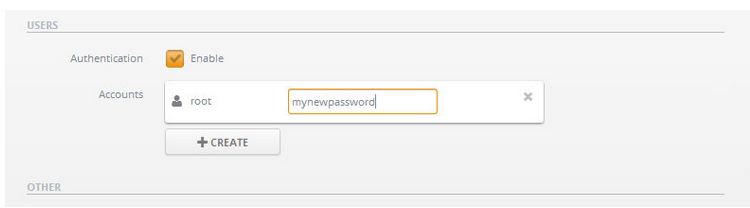
1) To change the root user’s password to the “Configure” menu.

2) Click “Change password” on root account

3) Write a new password.

Ajenti_change password

4) You can also create a new user, Select features you would like to grant the user access.

5) Click “Create” button.

6) Set the name by clicking “unnamed

7) Writing the new name.

Ajenti_save

8) Click the icon on the left from the name to set the permissions.

9) Click “Save” on the top of the page.

Note : If you altered any other settings, also remember to apply the changes by restarting the control panel.


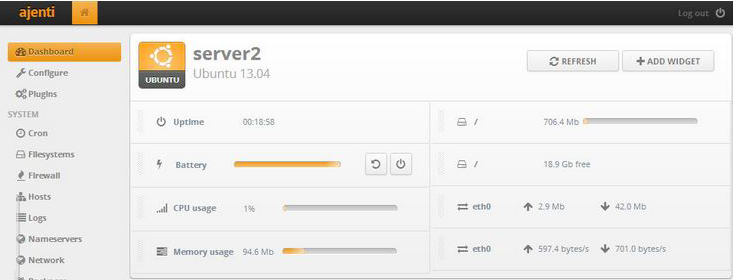
Customising Ajenti

You can remove widgets by grabbing from the dotted area and dragging them down.

Step 1 : Add new widgets by clicking “Add widget”

Step 2 : Drag them to the position you would like them to be
Customising Ajenti copy


The post How to Configuring & Customising Ajenti on Ubuntu first appeared on Web Hosting Stuff.

]]>
https://www.ashishkale.in/how-to-configuring-customising-ajenti-on-ubuntu/feed/ 0