The post Tips For Drupal SEO Modules first appeared on Web Hosting Stuff.
]]>How you can quickly harness the power of Drupal to get your site indexed and get top rankings in Search Engines.

Best 10 Drupal modules for website marketing
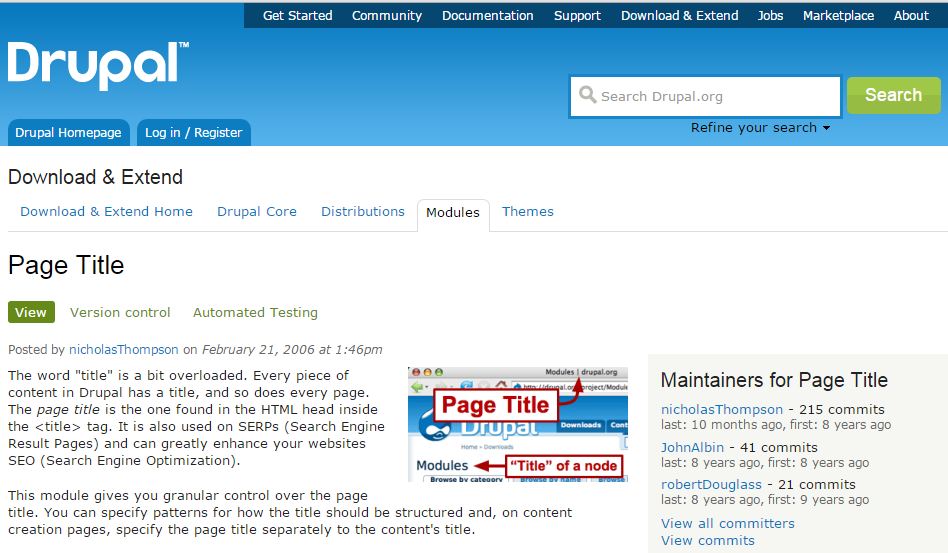
1) Page Title
You will Allows use to separate the page title from the content. The title given to a page is usually peppered with relevant keywords to attract maximum attention from search engines.
Click the Following Link and See how the page titles should be structured.
https://www.drupal.org/project/page_title
2) Pathauto
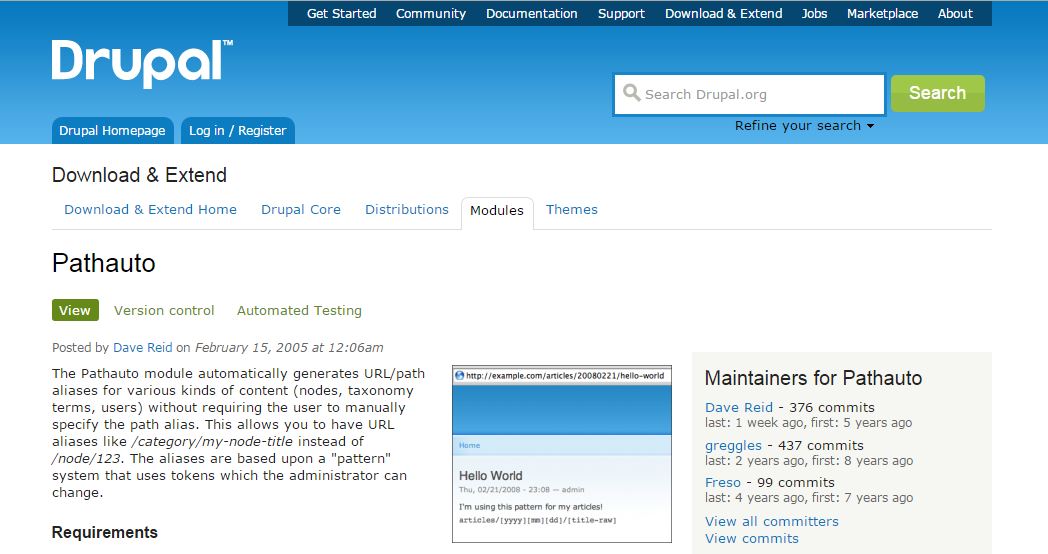
The Pathauto module to define patterns and automatically generate URLs based on these patterns. This module helps to generate optimized URLs that are highly SEO-friendly in nature.
For example,
Pathauto helps convert a Drupal-generated URL such as “mywebsite/node/15” into a more meaningful one like “hostripples.com/web-hosting/best-web“.
Click the Following Link and See how the Pathauto should be structured.
https://www.drupal.org/project/pathauto
3) XML Sitemap
XML Sitemap module will help search engine crawlers determine what new content is on your website, and what the paths are. Sitemaps are a listing of content on your website.
Click the Following Link and See how the XML Sitemap should be structured.
https://www.drupal.org/project/xmlsitemap

4) Google Analytics
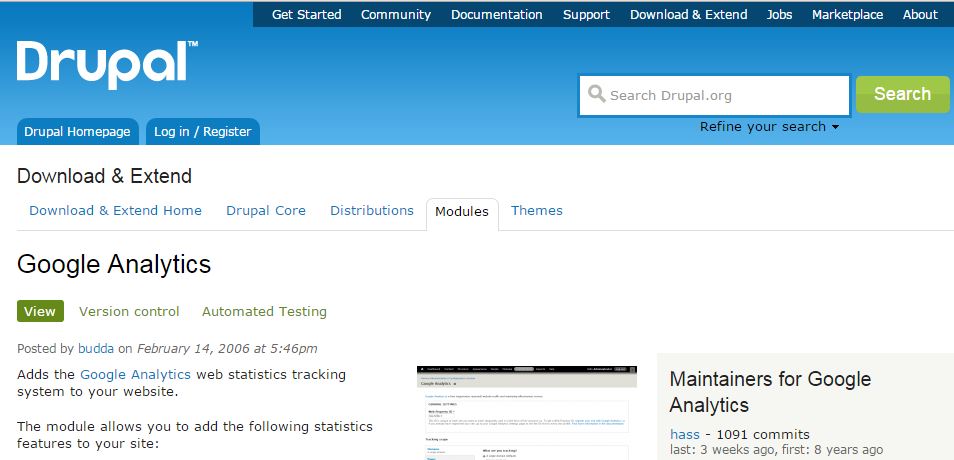
This module will reports on who is visiting your website. You can see the top keywords for your site, your top entry and exit points, who is driving traffic to your site.
Click the Following Link and See how the Google Analytics should be structured.
https://www.drupal.org/project/google_analytics
5) Global Redirect
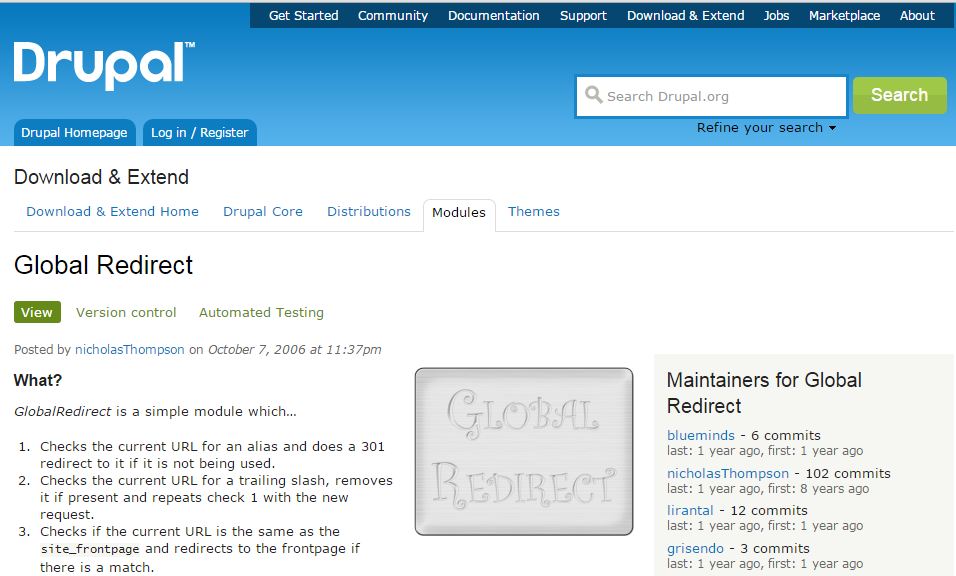
Global Redirect module handles 301 redirects on your website automatically.
Click the Following Link and See how the Global Redirect should be structured.
https://www.drupal.org/project/globalredirect
6) Redirect :
Search engines hate pages that can be accessed two or more URLs. Get rid of duplicate URLs by using the Redirect module to explicitly redirect to useful links while getting rid of 404 error pages.
Click the Following Link and See how the Redirect should be structured.
https://www.drupal.org/project/redirect

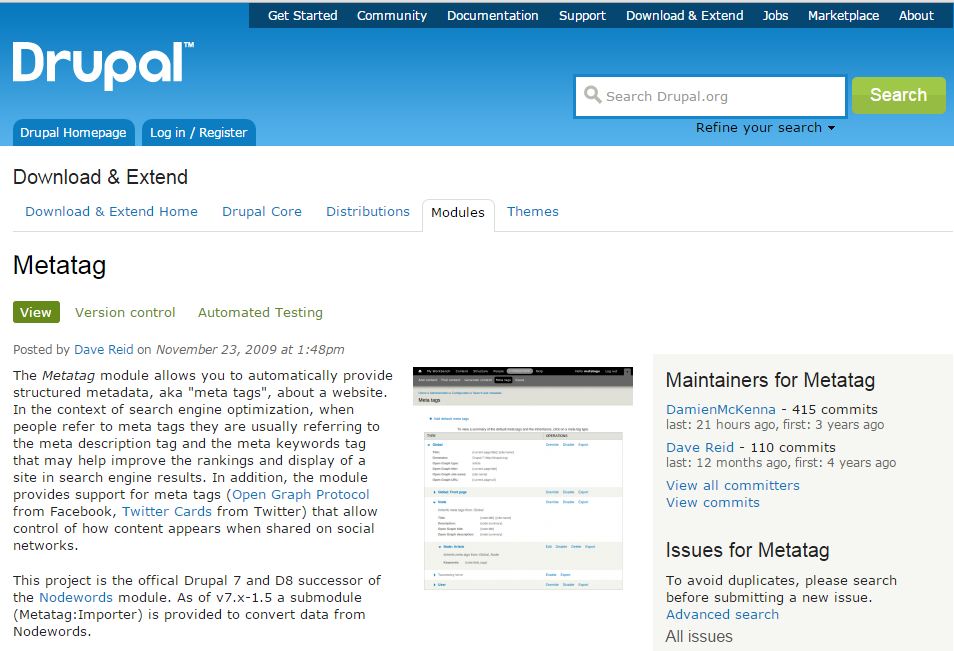
7) Metatag :
Metatag module define metadata on your content. This module is highly recommended to have Meta Descriptions on all content on your website. This module allows you to set some meta tags for each node, view or panels page.
Website can go nowhere without “Meta tags”, “Description”, “Page Title” or “Keywords”, Drupal has you covered! Each page you create can have their own share of meta tags to rise above other competing sites.
Click the Following Link and See how the Metatag be structured.
https://www.drupal.org/project/metatag
8) Content Optimizer :
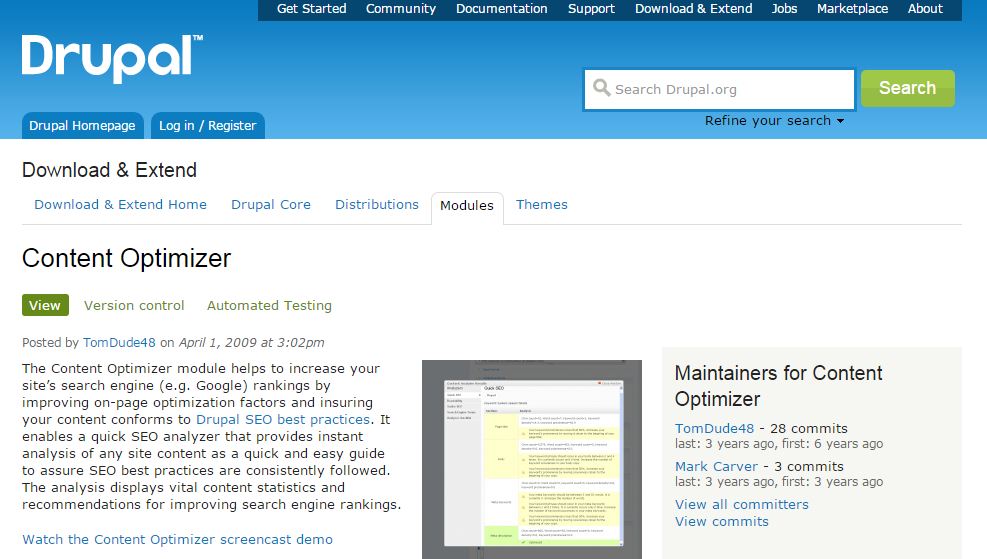
Content Optimizer module will help monitor nodes within your site and provide useful tips on SEO best practices.
Click the Following Link and See how the Content Optimizer be structured.
https://www.drupal.org/project/contentoptimizer
9) Alinks :
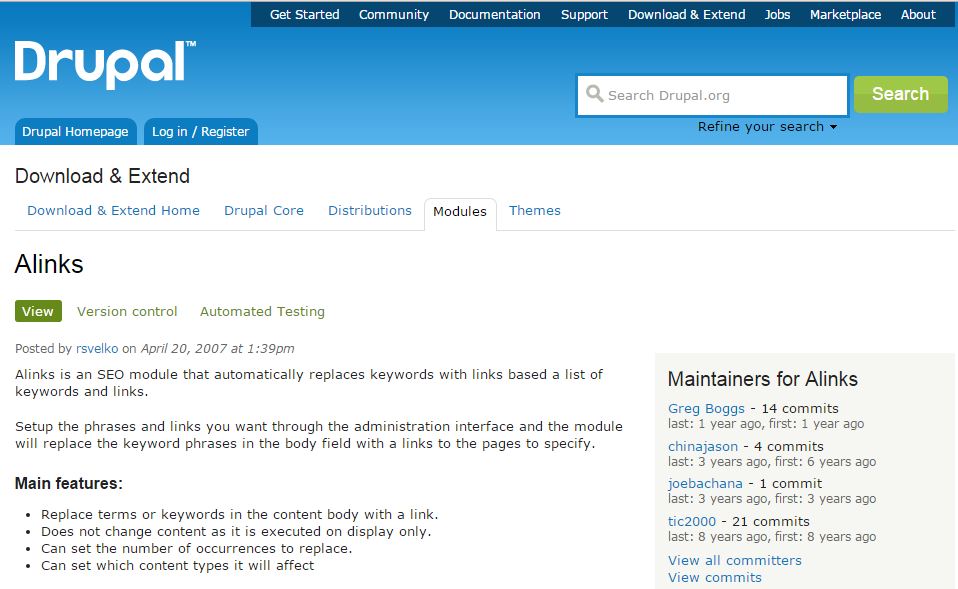
Alinks module will create automatic links. Allows users to associates defined text to links. This module is based on the wordpress module “alinks”. Very easy to use, just enter your normal content and setup the terms/links you want on your site through the administration interface.
Click the Following Link and See how the Alinks be structured.
https://www.drupal.org/project/alinks
10) SEO Compliance Checker :
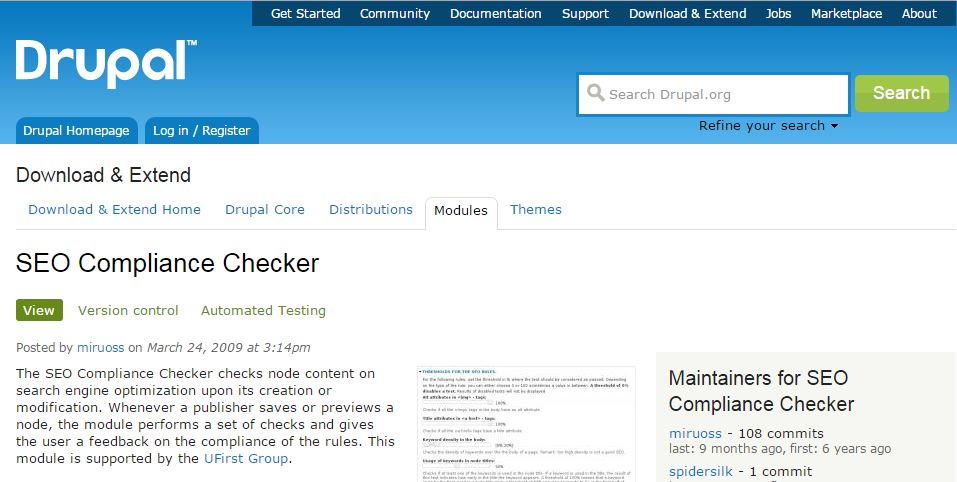
This module mainly checks for on page SEO. If a publisher saves or previews a node, the module performs a set of checks and gives the user a feedback on the compliance of the rules.
Click the Following Link and See how the SEO Compliance Checker be structured.
https://www.drupal.org/project/seo_checker
The post Tips For Drupal SEO Modules first appeared on Web Hosting Stuff.
]]>The post How to setup Backup & Migrate Module on Drupal first appeared on Web Hosting Stuff.
]]>Backup and Migrate makes the task of backing up your Drupal database and migrating data from one Drupal install to another easier. It provides a function to backup the entire database to file or download, and to restore from a previous backup. You can also schedule the backup operation. Compression of backup files is also supported. The database backup files created with this module can be imported into this or any other Drupal installation with the restore feature, or you can use a database tool such as phpMyAdmin.

Add private file system path
1) Navigate to Backup and Migrate
Configuration » System » Backup and Migrate
2) Click on the link file system settings
3) Enter a path to the directory where you are saving the private files.
sites/default/files/private
4) Save configuration
==============================
Backup database in local folder
You can download the current Drupal Site to your local folder.
1) Select the configuration
2) Click on Backup now button
.
.
.
The download will start instantly.
=============================
Backup to Server
You can save the current Drupal Install to the server itself
1) Select the configuration
2) Click on Backup now button
.
.
An archived file will be saved in the server.
(You can see the saved backups under SAVED BACKUP tab)
=============================
Restore from a Backup & Migrate Archive from your local folder on Drupal
1) Go to Restore tab
2) Select the radio button Restore from an uploaded file
3) Click Choose File button
4) Select the compressed file
5) Click on Restore now button
.
.
.
The Drupal site will be restored
=============================
Restore a Drupal site from a Saved backup (saved in server) on Drupal
1) Go to Restore tab
2) Select the radio button Restore from saved backup
3) Select a archive which you want to restore
4) Click on Restore now button.
.
.
.
The database will be restored
=============================
Set up Automatic Scheduled Backups
1) Got to Schedules tab
2) Click the link Add Schedule button
3) You will be taken to the schedule configuration page.
4) Rename the schedule
5) Select Backup Source as Default Database
6) Select Enabled check box
7) Select the radio button Run using Drupal’s cron
8) Select to backup either every hour or daily or weekly
9) Select the whether to delete old backup file during the current schedule process
10) Click on Save Schedule button.
11) You can see the saved schedule under Schedules tab
12) You can also edit settings for a particular schedule by using the edit button.
The post How to setup Backup & Migrate Module on Drupal first appeared on Web Hosting Stuff.
]]>The post How to Back Up Your Drupal Website first appeared on Web Hosting Stuff.
]]>
Back Up Your Drupal Website
Drupal Website backing up involves backing up both the site’s database and its files. Just for taking file backup doesn’t help. Always take database and files backup whenever you take Drupal Website backup.
Step 1. To Back Up Your Files
1) Download all files pertaining to your Drupal website using an FTP client.
2) The illustration below shows a Drupal website installed in a sub-directory called “drupal”
2) The FTP client FileZilla is used to download the files.
Step 2. To Back Up Your Database
1) Log in to your hosting account’s cPanel
2) Click on “phpMyAdmin” in the Databases section
3) Then click on Databases
4) Select your Drupal website’s database
5) Then click Export
6) In the following page, click Go
7) Save the file to your desired location.
.
.
.
Congratulations! You have now backed up your Drupal website.
The post How to Back Up Your Drupal Website first appeared on Web Hosting Stuff.
]]>