The post How to Resolve cPanel File Upload Issues? first appeared on Web Hosting Stuff.
]]>If you are facing an issue with file uploading on the cPanel, this is the exact article where you can get the solution. We have written the causes and solutions for fixing the problem. So, let’s check the article below:
What are the common causes of cPanel file upload issues?
cPanel file upload issues can stem from various factors, including:
- File Size Restrictions:
- cPanel has default limits on file upload sizes.
- Attempting to upload larger files will result in errors.
- Solution: Check your cPanel’s file size limits and consider splitting large files or optimizing them for smaller sizes.
- Permission Issues:
- Incorrect file or directory permissions can prevent uploads.
- Solution: Ensure proper permissions are set for the target directory and files.
- Browser or Cache Problems:
- Browser cache or settings might interfere with cPanel’s upload functionality.
- Solution: Clear your browser’s cache and cookies, try a different browser, or disable browser extensions that might be interfering.
- Insufficient Storage:
- If your hosting account is running low on disk space, uploads might fail.
- Solution: Free up space by deleting unnecessary files or upgrading your hosting plan.
- Network Connectivity Issues:
- A poor internet connection or firewall settings can block uploads.
- Solution: Check your network connection and firewall settings.
- PHP Configuration Limits:
- PHP configurations like upload_max_filesize and post_max_size can limit upload sizes.
- Solution: Modify these settings in your PHP configuration (if allowed by your hosting provider).
- Server Errors:
- Server-side issues can sometimes hinder uploads.
- Solution: Check server error logs or contact your hosting provider for assistance.
By understanding these common causes and troubleshooting steps, you can effectively resolve the cPanel file upload issues and ensure smooth website management.
How to Resolve cPanel File Upload Issues?
1. Check File Size Limits
- cPanel Limits: Verify the maximum file upload size allowed by your cPanel account. This information is usually available in your cPanel’s documentation or by contacting your hosting provider.
- PHP Limits: Check the upload_max_filesize and post_max_size settings in your PHP configuration. These settings limit the size of files that can be uploaded through PHP scripts.
2. Adjust File Size Limits (if possible)
- cPanel: If the file size limit is too restrictive, you might be able to increase it by contacting your hosting provider.
- PHP: If you have access to your PHP configuration, you can adjust the upload_max_file size and post_max_size settings. However, this often requires root access or assistance from your hosting provider.
3. Verify File Permissions
- Correct Permissions: Ensure that the directory where you’re uploading files has the correct permissions. Typically, you can write permissions for the user or group that owns the directory.
- Check File Permissions: Also, verify the permissions of the uploaded file itself. It should have appropriate read/write permissions for the web server.
4. Clear Browser Cache and Cookies
- Browser Issues: Sometimes, browser cache or cookies can interfere with cPanel’s upload functionality.
- Clear Cache: Clear your browser’s cache and cookies, then try uploading again.
5. Try a Different Browser
- Browser Compatibility: Incompatibility between your browser and cPanel can sometimes cause upload problems.
- Test with Another Browser: Try uploading using a different web browser (e.g., Chrome, Firefox, Edge).
6. Check Network Connectivity
- Stable Connection: A weak or unstable internet connection can interrupt file uploads.
- Test Connection: Ensure you have a stable internet connection.
7. Contact Your Hosting Provider
- Server-Side Issues: If you’ve checked all the above and are still experiencing problems, contact your hosting provider’s support team. They can investigate server-side issues or provide further assistance.
Additional Tips:
- Split Large Files: If you’re uploading large files, consider splitting them into smaller parts and uploading them individually.
- Use FTP/SFTP: You can consider using File Transfer Protocol (FTP) or Secure File Transfer Protocol (SFTP) clients like FileZilla for larger files. These tools can often handle larger uploads more efficiently.
By following these steps and working closely with your hosting provider, you should be able to resolve most cPanel file upload issues.
The post How to Resolve cPanel File Upload Issues? first appeared on Web Hosting Stuff.
]]>The post How do you check the version of cPanel/WHM? first appeared on Web Hosting Stuff.
]]>Just make sure that your cPanel/WHM software is updated; keeping the server safe and working is crucial. Here, in this document, you will see in-depth knowledge on checking the cPanel version using multiple methods to stay informed about hosting setup.
Method 1: Checking cPanel Version Through the WHM Command Line
Log in to WHM: Access your WHM interface using the root username and password.
Navigate to Terminal: Go to Server Configuration -> Terminal.
Execute the Command:
In the terminal window, use this command and type Enter:
/usr/local/cpanel/cpanel -V
This command will output the cPanel version to the terminal.
Example Output:
11.98.0 (build 12)
Explanation:
- The command /usr/local/cpanel/cpanel -V is the same as running it directly on the server’s command line.
- This method provides a quick and efficient way to check the cPanel version without leaving the WHM interface.
Method 2: Checking cPanel Version Through WHM Dashboard
Steps:
- Log in to your WHM account.
- The cPanel/WHM version is typically displayed at the top of the WHM dashboard.
Method 3: Examine the cPanel Version Through the WHM Version File
Login to WHM: Access your WHM interface using your root credentials.
Navigate to Terminal: Go to Server Configuration -> Terminal.
Write the Command > terminal window > write the following command and give Enter
cat /usr/local/cpanel/version
View the Version: The output will display the cPanel version number.
Method 4: Checking the cPanel Version from the cPanel Dashboard
This is the simplest method to check your cPanel version
Steps:
- Log in to your cPanel account.
- Locate the “Server Information” section: This is usually found on the right side of the dashboard. It might be in a sidebar or a separate panel.
- Click on “Server Information”.
- Look for the “cPanel Version” information: This will be listed along with other server details.
Method 5: Checking cPanel Version Through SSH
Establish an SSH connection: Use an SSH client like PuTTY or the built-in terminal on macOS/Linux to connect to your server as root.
Execute the command: Once connected, type the following command and press Enter:
Conclusion
Frequently checking and updating your cPanel/WHM installation confirms excellent features, improvement, and security patches. Retain the server running smoothly by updating yourself about the cPanel/WHM version.
The post How do you check the version of cPanel/WHM? first appeared on Web Hosting Stuff.
]]>The post How to Terminate a cPanel License first appeared on Web Hosting Stuff.
]]>- Setting up domains and subdomains
- Creating email accounts
- Managing databases
- Uploading and managing website files
- Security controls
How cPanel licenses work:
- Required for Functionality: You need a separate cPanel license for each server you plan to run the cPanel & WHM on. Without a valid license, the software won’t function.
- Purchasing Options: You can buy cPanel licenses directly from the cPanel store or through authorized resellers like web hosting providers https://www.licensepal.com/products/cpanel.php.
- License Tiers: cPanel offers tiered licenses based on the number of accounts you can manage on the server, ranging from basic plans for a single account to enterprise-level options for hundreds of accounts https://www.cpanel.net/pricing/.
- Free Trial: Luckily, cPanel offers a free 15-day trial license to test the software before committing https://cpanel.net/products/trial/.
Terminating a cPanel license involves canceling it through your cPanel Store account. Check how to do it:
- Log in to your cPanel Store account.
- Navigate to the “Manage Licenses” section.
- Find the specific cPanel license you want to terminate in the list.
- You’ll see a menu icon under the “Actions” column (often represented by dots or ellipses). Click on it.
- From the menu, select “Cancel“.
- A confirmation window will pop up. You’ll have the option to provide a reason for cancellation (optional).
- Confirm the cancellation by clicking “Yes“.
Important points to remember:
You can only cancel licenses through the cPanel Store account. Canceling a license after the initial 72-hour purchase window won’t grant you a refund. The license will stay active until the end of the billing month.
The post How to Terminate a cPanel License first appeared on Web Hosting Stuff.
]]>The post How to restore a Full cPanel Account using JetBackup 5 first appeared on Web Hosting Stuff.
]]>- Service downtime: Your cPanel account will be pulled down and re-developed during this restoration process. Based on the total size of your account, you can expect interruptions for a few minutes up to one hour.
- Viable data loss: All websites, primary domains, addon domains, aliases, and associated databases will get restored, just select the date and time. Any changes done after that time will get lost.
- Viable email loss: All email accounts will be restored to the selected date and time. If any email is received after that selected time will be lost.
Check the below steps to restore a Full cPanel Account using JetBackup 5
You have to log in to your cPanel.

After logging in browse the Files section and tab on jetBackup5

Under the “Restore & Download section, the tab “Full Backups”

Next, you have to select the backup for the folder that you like to restore (sorted by date), then click the Restore button.

In the fifth step, you have to tab the Restore Summary screen, where you’ll see the selected backups to restore the items To Restore, then click Restore Selected Items.

Now, you have to wait for Queue to complete the restoration job, the ‘Completed’ status will be shown when the restore process is completed.

In the bottom line, “Processing… state, the backup will get downloaded from the backup server, and your account will be pulled down and re-developed, rendering your account inoperable for some time. You have to keep patient.
Let’s learn the Queue statuses:
The queue status “Pending” indicates the server is waiting for the restoration task to be processed.
The queue status “In Progress” indicates that you need to wait, and avoid any actions inside the cPanel account, till the restoration is done.
The queue status “completed” indicates that the restoration has been successful. If you have shown the queue status “Failed”, you have to try another date or contact their support team.
The post How to restore a Full cPanel Account using JetBackup 5 first appeared on Web Hosting Stuff.
]]>The post How to Enable LiteSpeed Web Cache Manager on cPanel? first appeared on Web Hosting Stuff.
]]>- Initially, you have to log in to your cPanel account with a username and password.
2. Once you have logged in to your cPanel the cPanel dashboard will be shown, scroll down and go to the Advanced section > LiteSpeed Web Cache Manager.

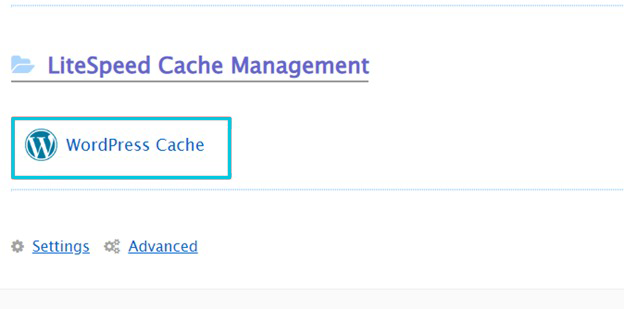
3. After logging in, you have to click on the WordPress cache icon.
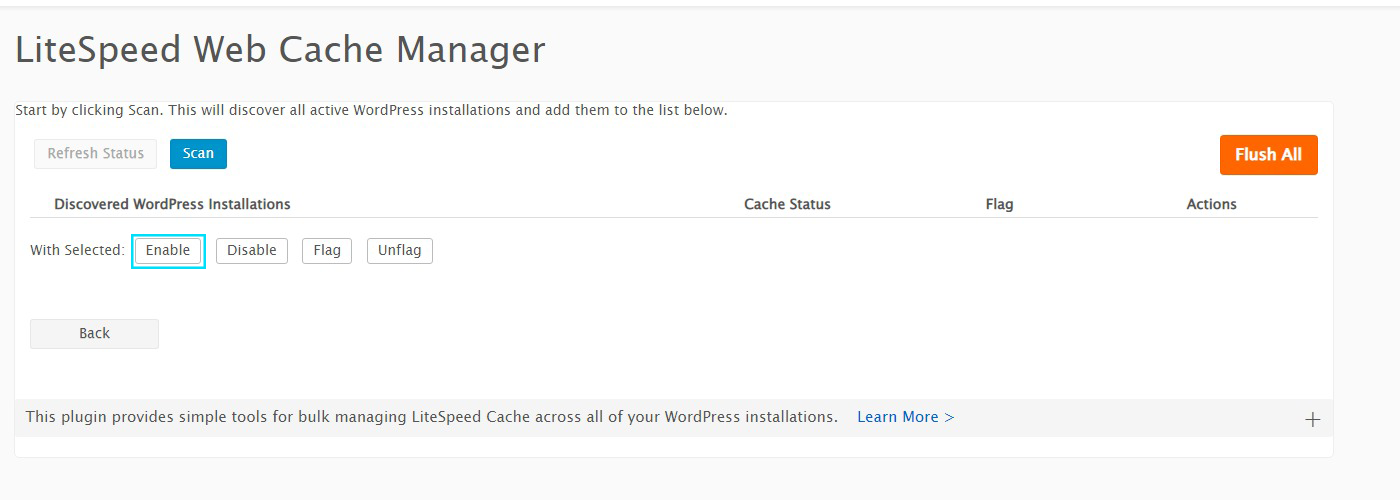
4. The next step is to click on the Scan button. This will highlight all the active WordPress installations.
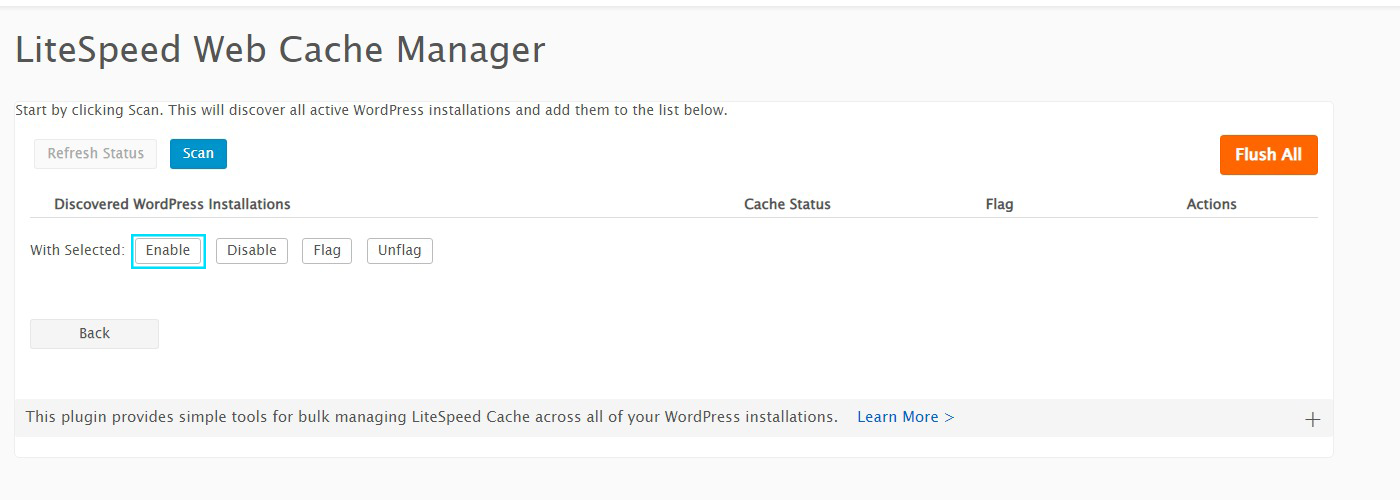
5. Eventually, once all the WordPress installations are discovered, you have to select the ones you want to activate and then click on Enable.
This is how you can implement these steps to use LiteSpeed web cache manager for WordPress sites on your cPanel server.
In conclusion,
enabling LiteSpeed Web Cache Manager on cPanel can significantly enhance website performance and speed, ultimately improving user experience and search engine rankings.
By following the simple steps outlined in this guide, website owners can harness the power of caching to optimize their site’s performance.
Embracing LiteSpeed Cache can lead to tangible benefits, such as reduced server load and faster page load times. Stay ahead in the digital landscape by leveraging this powerful tool to deliver a seamless and efficient web experience for your visitors.
The post How to Enable LiteSpeed Web Cache Manager on cPanel? first appeared on Web Hosting Stuff.
]]>The post How to configure SSH keys using cPanel first appeared on Web Hosting Stuff.
]]>Generating a Key Pair on cPanel:
- Log in to cPanel.
- Navigate to the Security section and find the SSH Access tool.
- Click on Manage SSH Keys.
- Click on Generate a New Key.
- You can choose a name for the key pair or leave the default “id_rsa”.
- Optionally, set a strong password for the key and click Generate Key.
Adding the Public Key to Authorized Keys:
- In the Manage SSH Keys section, you need to scroll down to the Authorized Keys area.
- Next, you have to click on Manage next to the key you just generated.
- A box with the public key will be displayed. You can copy the entire contents of the box.
- Here you’ll need to access your server through another method (like root access or a current SSH connection) and add the copied public key to the authorized_keys file located in the .ssh directory of your home directory.
Downloading the Private Key (for SSH client):
- Go back to the Manage SSH Keys section in cPanel.
- Find the key you have created under Private Keys.
- Click View/Download next to the key.
- You’ll see the option to convert the key to PPK format (if using PuTTY). Then, you have to choose the conversion if needed.
- Click on Download Key and save the private key securely on your local machine. This private key will be used for SSH login with your client program.
Tips:
- Make sure to keep your private key confidential and avoid sharing it with anyone.
- Consult your SSH client’s documentation for specific instructions on using the private key for login.
For a more detailed walkthrough, you can refer to resources like the cPanel documentation or tutorials from web hosting providers.
The post How to configure SSH keys using cPanel first appeared on Web Hosting Stuff.
]]>The post How to Import From cPanel to Webuzo first appeared on Web Hosting Stuff.
]]>This article will guide you on importing databases from cPanel to Webuzo.
Procedure:
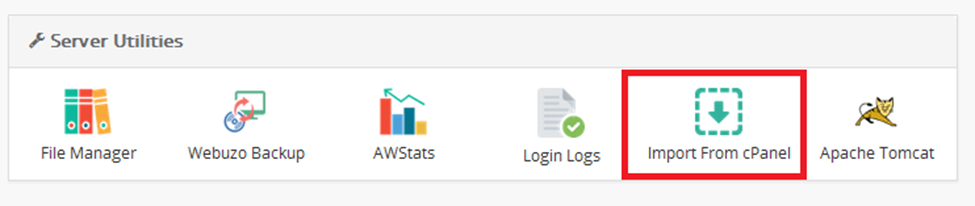
Move to Webuzo Enduser Panel > Server Utilities > Import From cPanel.
Find below screenshot from cPanel:
Remote Import
Steps:
- Fill the form with the cPanel server, user, and password details.
- Tab on Submit to Import the cPanel Account.
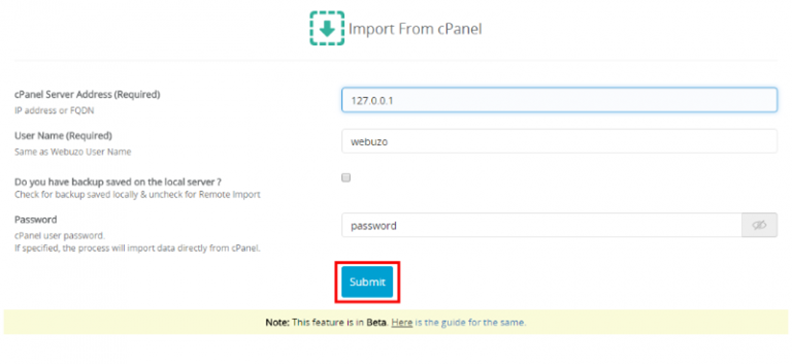
A below-mentioned screen shot indicates Import process has started successfully.

- Once completion is done then you’ll receive the email.
- Import logs can be found at /usr/local/webuzo/includes/cli/cpanel_migration.log
Local Backup File Import
Steps
- Circulate the Form with the cPanel Server, User, and backup file path details.
- Click on Submit to Import the cPanel Account.
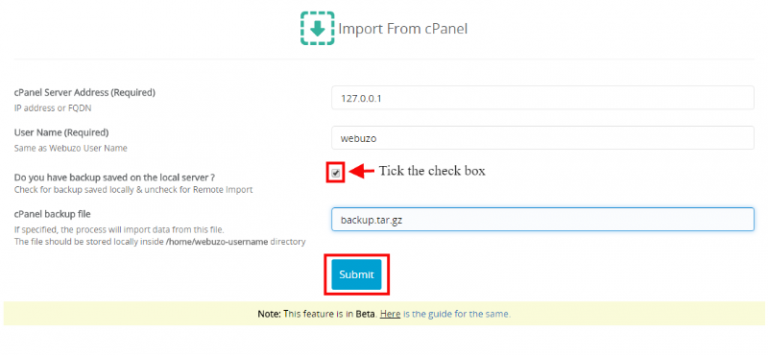
A below-mentioned screenshot indicates Import process has started successfully.
- On completion of the Import process, you will receive an email.
- Import logs can be found at /usr/local/webuzo/includes/cli/cpanel_migration.log
Important tip
Note: This feature is available in the BETA stage as of now.
- You need to install a fresh Webuzo Server and the name of the Webuzo user should be the same as the cPanel Username
- Import utility will overwrite all your Webuzo user data.
- Your backup of cPanel must be stored at /home/webuzo_username/ directory.
Once the import process has taken place then you can withdraw the archive.
Domains, Databases, etc are generalized in the Webuzo account like cPanel.
A random password is given to FTP users imported on the new Webuzo server. It is suggested to change the passwords of the FTP user’s account.
Email notifications of the FTP accounts are also created.
Import logs are generated at /usr/local/webuzo/includes/cli/cpanel_migration.log
Import Email accounts if any are not imported
- Once completion is done then you’ll receive the email.
- Import logs can be found at /usr/local/webuzo/includes/cli/cpanel_migration.log
Required Inputs
- cPanel Server Address: IP address or FQDN of your cPanel account.
- User name – cPanel Username same as Webuzo username.
- Password – cPanel user password
- cPanel backup file – Full cPanel backup file name stored on Webuzo machine e.g. backup.tar.gz
The post How to Import From cPanel to Webuzo first appeared on Web Hosting Stuff.
]]>The post How to Convert cPanel to Webuzo first appeared on Web Hosting Stuff.
]]>This guide will help you to convert your cPanel server to Webuzo. This tool performs many tasks like converting your cPanel server itself uninstalls cPanel, installing Webuzo, and converting all cPanel data to Webuzo. Everything works smoothly and all your users’ websites, domains, databases, emails, FTP accounts, and SSL certificates remain as it is.
Note: Please ensure you’ve fully backed up your VPS / Server. For the safer side, you need to restore the VPS backup as cPanel will be uninstalled from the server.
Commands

The conversion will monitor the requirements and ask for confirmation. It is advised to type yes and press enter to proceed with the conversion.
Later, you can check converter logs at:
/root/webuzo_convert/cpanel-webuzo-convert.log
The required time is 5 minutes to 30 minutes based on the resources available on the server and the network connection speed.
Since this takes time, we suggest implementing the above commands using tmux or session, so if your machine disconnects due to an internet connection issue on your desktop the command still runs in the background.
WHMCS Converter
Webuzo comes with a converter script that helps to convert the WHMCS cPanel hosting accounts to Webuzo. Please refer to the guide.
What Data will be Migrated?
The converter will move the following data:
1) All Domains – Addon, Parked, Sub-domain.
2) MultiPHP preferences per domain
3) All Databases and Database Users
4) FTP Accounts
5) It covers all email-related data like accounts, forwarders, and autoresponders.
6) DNS records
7) SSL Certificates
8) Cron Jobs
9) ACL Packages
10) Users and Resellers with appropriate ownership
11) IP allocation to users and resellers
12) For All plans installed on the cPanel server the same version will be installed on Webuzo.
13) All other data needed for accessing the control panel.
Understand the difference between Converter and Importer?
The converter is responsible for converting the data on the cPanel server itself and doesn’t need a new server. Hence, no IPs are changed. As compared to importer as it does not need to transfer the files across servers. It needs a full backup of the server if in case you need to revert it for restore purposes from the backup.
An importer is required to set up a new server with Webuzo and data is moved from the cPanel server to Webuzo. Further, IPs need to be changed to run the cPanel server compared to cPanel and Webuzo. If you prefer to import the sites instead of in-place converter you can refer to this guide.
The post How to Convert cPanel to Webuzo first appeared on Web Hosting Stuff.
]]>The post How to Install CloudLinux OS with Webuzo Control Panel first appeared on Web Hosting Stuff.
]]>Steps to Install CloudLinux OS
Supported CloudLinux versions: CloudLinux 8.x, CloudLinux 9.x
You need to install CloudLinux OS and the guide to follow the instructions:
https://docs.cloudlinux.com/cloudlinux_installation/
Note: Don’t forget to reboot the OS once CloudLinux is installed.
Step to Install CloudLinux Plugin
After rebooting the CloudLinux OS, the next is to install the CloudLinux plugin in Webuzo. To get the installed plugin, you have to run the following command.
wget -N https://files.webuzo.com/plugins/cloudlinux/cloudlinux.sh
chmod +x cloudlinux.sh
./cloudlinux.sh
Install the CloudLinux plugin in Webuzo and allow users and admins to check the CloudLinux utilities.
Note: To eliminate the error showing “reboot the server in the correct kernel in Webuzo Tasks, then opt for right kernel for CloudLinux OS with ‘Ive’ in the name.
Admin Panel Screenshot
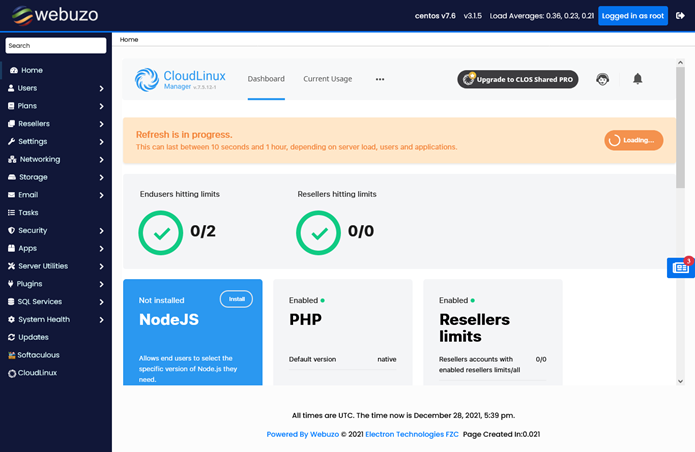
Enduser Panel Screenshot
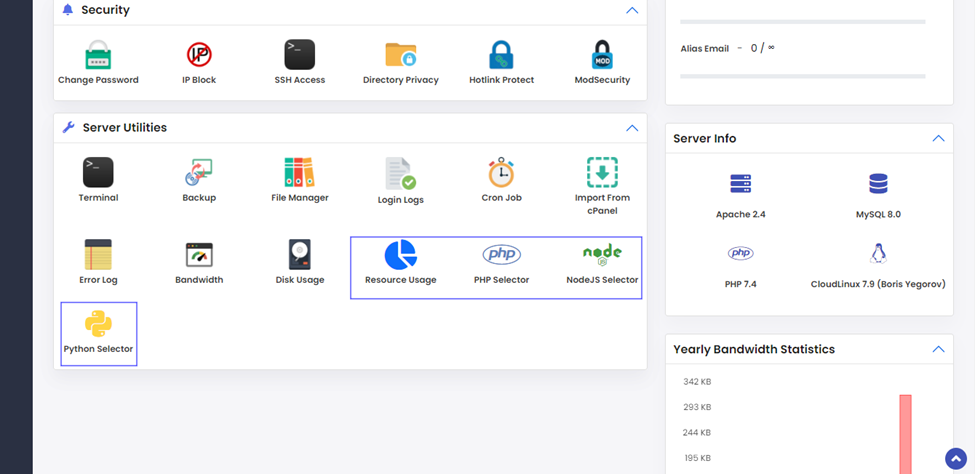
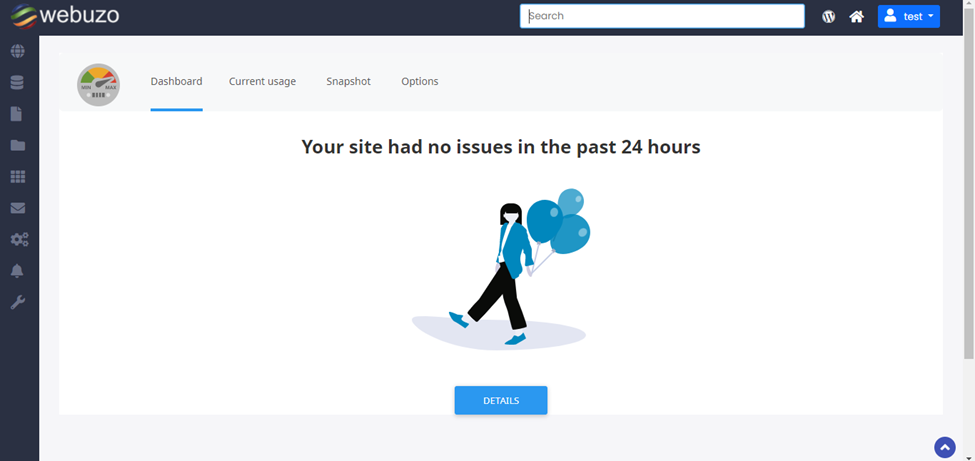
The post How to Install CloudLinux OS with Webuzo Control Panel first appeared on Web Hosting Stuff.
]]>The post List of System Requirements to Install Webuzo first appeared on Web Hosting Stuff.
]]>Webuzo is often used in the context of web hosting services, where it allows users to install and configure popular web applications with just a few clicks. It supports a wide range of applications, including WordPress, Joomla, Drupal, Magento, and many others. With Webuzo, users can quickly set up and manage their websites without needing extensive technical knowledge.
Key features of Webuzo include:
Application Library: Webuzo offers a comprehensive library of applications that can be installed with ease. It provides one-click installation for popular CMS, e-commerce, and other web applications.
Automated Updates: It simplifies the process of keeping applications up to date by providing automated updates for installed applications. Users can easily manage updates for multiple applications from the Webuzo control panel.
System Monitoring: Webuzo includes monitoring tools to keep track of system resources, such as CPU, memory, and disk usage. This helps users optimize their server performance and ensure efficient operation.
Backup and Restore: It allows users to create backups of their applications and databases, providing an added layer of data protection. In case of any issues, users can restore their applications and data from these backups.
Domain Management: Webuzo enables users to manage their domains and DNS settings from the control panel. It simplifies tasks like adding domains, creating subdomains, and managing DNS records.
Webuzo is compatible with various Linux distributions, including CentOS, Ubuntu, and Debian. It is primarily aimed at users who prefer a user-friendly interface for managing their web applications and server resources, making it a popular choice among beginners and individuals who want to simplify their hosting experience.
Here you’ll get a list of System Requirements for operating the Webuzo
Supported Linux Operating System (x86_64) // Should be a FRESH installation
CentOS 7.x / 8.x
AlmaLinux 8.x / 9.x
Ubuntu LTS 18.04 / 20.04 / 22.04
Red Hat Enterprise Linux 7.x / 8.x
Scientific Linux 7.x / 8.x
Rocky Linux 8.x
CloudLinux 8.x / 9.x
- They offer packages like yum, apt-get, tar, wget.
- You need RAM of 1GB (we suggest 10GB for best performance)
- You need disk space of a minimum 5 GB (we suggest 10GB for best performance)
Compulsory Note:
- PHP, Apache, MySQL should not be installed by default on the server.
- To match the compatibility with Webuzo you need to disable SELinux.
- Allow access to the following domains to your firewall as these are the mirror servers used to download the script plans or apps.
api.softaculous.com (IP : 192.198.80.3)
s1.softaculous.com (IP : 158.69.6.246)
s2.softaculous.com (IP : 192.200.108.99)
s3.softaculous.com (IP : 178.32.158.97)
s4.softaculous.com (IP : 138.201.24.83)
s7.softaculous.com (IP : 167.114.200.240
Virtualization Supported
VMware
Parallels
VirtualBox
Xen PV or HVM
Linux-KVM
OpenVZ
LXC
Azure
The post List of System Requirements to Install Webuzo first appeared on Web Hosting Stuff.
]]>